How to Track Remote Employee Hours: The Complete Guide for Managers
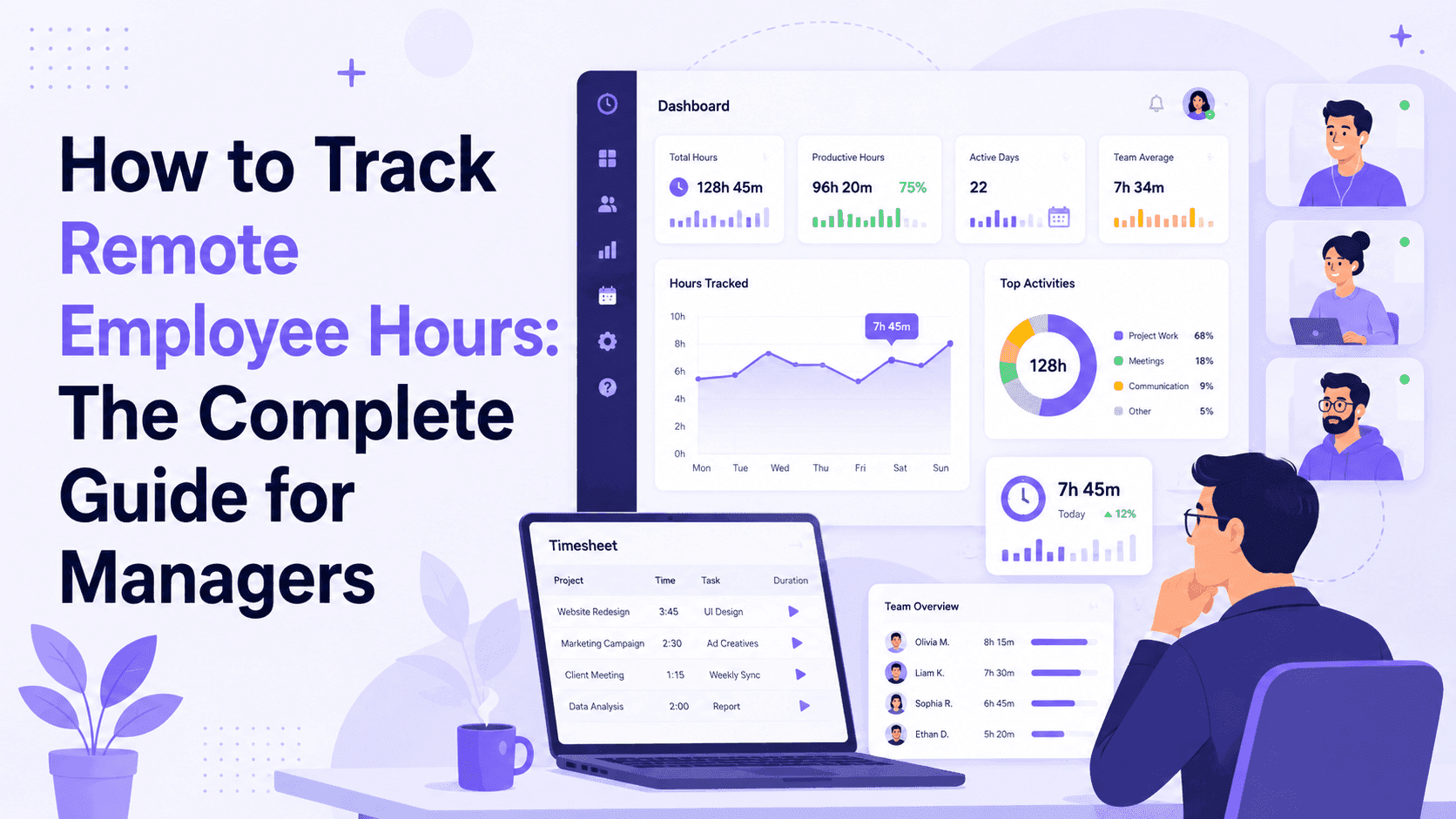
Tracking remote employee hours accurately requires more than asking people to fill in a timesheet. This guide covers every method from manual to automated, what to look for in a tool, legal considerations, and how to roll it out without damaging team trust.
Tracking remote employee hours sounds simple until you actually try to do it at scale.
When your team is in the same office, visibility is built into the environment. You know who arrived, who stayed late, who was genuinely focused versus who was scrolling through their phone. Remove the physical space and that implicit visibility disappears entirely.
What you need is a system. One that gives managers accurate data without requiring employees to fill in manual timesheets, and one that handles the realities of remote work: different time zones, overnight shifts, home offices with real-life interruptions, and teams spread across three continents.
This guide covers every approach to tracking remote employee hours, from the manual methods most teams start with to the automated tools that actually scale, along with what to watch out for and how to set it up in a way your team will accept.
Why Tracking Remote Hours Is Different From Office Hours
In an office, the workday has natural boundaries. People arrive, people leave, and managers have a reasonable sense of what happened in between.
Remote work removes all of those signals at once. Someone can be logged in but away from their desk for two hours. Someone can be fully focused without being visible on Slack. A developer in Manila working a night shift may be doing their best work at 2 AM while no one in the head office is awake to notice.
Tracking remote hours is not just about knowing when people are online. It is about:
- Attributing time accurately to the right projects and clients
- Understanding when team members are actively working versus just connected
- Making sure shift workers, especially overnight, are getting accurate payroll records
- Having reliable data to run project estimates, capacity planning, and billing
Without a system for this, managers spend hours each week chasing status updates, and payroll teams spend time correcting timesheets that should never have needed correcting.
Method 1: Manual Timesheets
The simplest approach. Employees fill in what they worked on, when they started, and when they finished, in a spreadsheet, a form, or a project tool.
What works: Zero cost. No software required. Easy to understand.
What fails at scale: Manual entry is inaccurate by design. People round up, round down, forget to log breaks, submit late, and record what they think they worked rather than what they actually worked. Research consistently shows self-reported time is off by 15 to 20 percent compared to automated tracking. For client billing or payroll compliance, that margin is not acceptable.
When to use it: Very small teams under 5 people, short projects, or as a supplementary check on automated tracking.
Method 2: Manual Clock-In and Clock-Out Systems
A step up from pure timesheets. Employees mark when they start and stop work in real time via a Slack bot, a web form, or a desktop time clock application.
What works: Slightly more accurate than retrospective timesheets because the action happens at the moment, not hours later.
What fails: It still depends on employees remembering to clock in and out. Forgotten clock-outs create data gaps. You also get total hours but no context about what those hours were spent on.
When to use it: Teams where project attribution does not matter, or where the relationship with the team makes automated monitoring feel disproportionate to the situation.
Method 3: Project Management Tool Time Logging
Tools like Asana, Monday.com, Jira, and Notion have time logging built in. Team members log time against tasks as they complete them.
What works: You get time broken down by project and task, which is useful for project reporting and client billing.
What fails: Data quality depends entirely on whether employees actually log time consistently. Most do not, especially for small interrupting tasks, meetings, or context switching between projects.
When to use it: Teams that primarily need project-level billing data and already have strong, consistent project management habits.
Method 4: Automated Time Tracking Software
This is where data quality improves significantly. Automated time tracking software runs a desktop agent on the employee's computer that records active time, applications in use, and shift data without requiring employees to log anything manually.
What works:
- Active time is recorded automatically without depending on memory or habit
- Application and website usage provides project context
- Screenshots at random intervals give visual verification of active work
- Data is real time and available for manager review without chasing anyone
- Idle detection flags periods of inactivity automatically
What fails if you pick the wrong tool: Most automated time trackers were built for a standard 9-to-5 schedule. For remote teams with overnight workers, they split overnight hours at midnight and create inaccurate records. For teams across multiple time zones, many require manual adjustments.
When to use it: Any remote team managing more than 10 people, any team with clients billed by the hour, and any organization where payroll accuracy for shift workers is a compliance requirement.
What to Look for in a Remote Hour Tracking Tool
Shift-aware tracking. If any remote workers operate outside a standard daytime window, you need a tool that attributes hours to shifts rather than calendar dates. A 10 PM to 7 AM shift should appear as one complete record, not two fragments split at midnight.
Multi-timezone support. Each employee's hours should be tracked in their local time zone, with reports that normalize across time zones automatically.
Random-interval screenshots. Fixed-interval captures can be worked around. Random captures produce a more accurate sample of what is actually on screen throughout the shift.
Project and task attribution. Hours need to attach to work context. A dashboard that shows eight hours worked but cannot tell you which project those hours belong to is not useful for billing.
Flat-rate pricing for larger teams. Per-user pricing compounds quickly. At 100 remote employees, per-user tools can cost $700 to $1,000 per month. Tools with flat-rate pricing deliver significantly more value at scale.
[Image: A live team dashboard view showing 6 remote team members with real-time status bars: green for active, yellow for idle, blue for meeting. On the right, a per-project time summary showing hours this week per project. Wide 16:9 SaaS UI mockup, clean light mode design.]
How HoraFlow Handles Remote Hour Tracking
HoraFlow was built specifically for teams that do not fit the standard 9-to-5 template. The desktop agent runs on Mac, Windows, and Linux including a signed .deb installer for Linux workstations. It tracks active time in the background, captures screenshots at random intervals, monitors application usage, and detects idle time automatically. Employees clock in at shift start. Everything else runs without requiring ongoing input.
Shift-based tracking. Configure your shifts once and HoraFlow attributes every hour to the right shift regardless of when midnight falls. A team in Manila and a team in London both appear with accurate, clean data on the same dashboard.
Live team timeline. The dashboard shows every active team member in real time without anyone needing to send a status update.
Activity heatmap. After a few weeks of data, you can see exactly when each person does their most focused work by hour and day of the week.
Project-level time data. Every tracked hour flows into the correct project report. Monthly billing reports take seconds, not a spreadsheet.
Flat-rate pricing. $125 per month for up to 100 users. $250 per month for up to 200 users. No per-seat fee when you hire.
Legal Considerations When Tracking Remote Hours
Disclosure is almost always required. In most countries, employers must inform employees that monitoring is in place before it starts, specifying what is tracked and what is not.
Laws vary significantly by jurisdiction. What is standard in the United States may require additional consent documentation in Germany, France, or the UK. If your remote team spans multiple countries, check local requirements for each.
Company devices vs. personal devices. Monitoring is more legally straightforward on company-owned equipment during work hours. Monitoring personal devices or activity outside shift hours is significantly more complex.
HoraFlow tracks active work time, application focus, and random screenshots during work sessions. It does not log keystrokes, activate cameras, or monitor outside logged shift time.
How to Roll Out Remote Hour Tracking Without Creating Resistance
Tell people before anything is installed. Schedule a call or send a written explanation before the installation email goes out. Employees who discover monitoring through an IT message without prior notice respond much worse than those who were briefed.
Be honest about your reasons. Vague reasons create suspicion. Specific operational reasons like running accurate client billing, attributing night shift hours correctly, and identifying capacity gaps are harder to argue with.
Let employees see their own data first. Give team members access to their own productivity scores and timelines before managers start reviewing them.
Name a calibration period. Tell your team the first two to four weeks are about verifying the data makes sense, not evaluating performance.
Focus on patterns, not moments. When you reference tracking data in a conversation, make sure it reflects a trend across weeks, not a single low-activity afternoon.
Common Mistakes When Tracking Remote Employee Hours
Using a 9-to-5 tool for a team that works other hours. Overnight data problems compound over time and are expensive to fix manually.
Not checking per-user pricing at your actual headcount. Many tools are affordable at 10 users and expensive at 100. Run the math before signing up.
Not creating projects before the first clock-in. Hours tracked without project context are significantly less useful for billing and resourcing decisions.
Reviewing too granularly. Weekly pattern review is more useful and less damaging to team culture than daily screenshot audits.
Frequently Asked Questions
Is it legal to track remote employee hours?
In most countries, yes, as long as employees are informed before monitoring begins. Requirements vary by jurisdiction. Monitoring on company-owned devices during defined work hours is generally permitted.
Can I track remote employee hours without software?
Yes. Manual timesheets, software time clocks, and project tool logging all work without dedicated tracking software. They are less accurate and do not scale past small teams.
What is the most accurate way to track remote employee hours?
Automated desktop tracking software that runs in the background. It eliminates the rounding and forgetting that affect self-reported timesheets and captures real active time.
How do I track remote employees who work overnight shifts?
You need a tool that treats shifts as units of work rather than attributing hours by calendar date. HoraFlow tracks shifts as complete units so a 10 PM to 7 AM shift appears as one record, not split across two days.
How do I track hours for employees in different time zones?
Use a tool that tracks each employee in their local time zone and normalizes across time zones in reports automatically.
How do I track remote hours without micromanaging?
Focus on weekly patterns and trends. Use automated reports so data comes to you rather than requiring active monitoring. Reserve detailed review for situations where a pattern has raised a genuine concern.
What should remote hour tracking software include?
Automatic time tracking, project attribution, shift support for non-standard hours, screenshot monitoring, idle detection, and multi-timezone reporting. Per-project time reports are non-negotiable for teams billing clients by the hour.
How much does remote employee hour tracking software cost?
Per-user tools run $7 to $25 per user per month. At 100 employees that is $700 to $2,500 per month. HoraFlow uses flat-rate pricing: $125 per month for up to 100 users, $250 per month for up to 200 users.
Do employees have to do anything manually with automated tracking?
Minimal. With HoraFlow, employees clock in at shift start. The desktop agent handles everything else.
How do I handle tracking for contractors vs. full-time remote employees?
The tracking setup is similar for both. The difference is how the data feeds into billing: project-level time reports for contractor invoicing, payroll and attendance records for full-time employees.
The Short Version
Tracking remote employee hours accurately requires more than asking people to fill in a timesheet. At any meaningful scale, automated tracking is the only method that produces data you can trust for billing, payroll, and management decisions.
Pick a tool that matches your real team structure. Standard daytime hours in one time zone: most tools work fine. Overnight shifts, multiple time zones, or more than 50 people: the choice of tool matters significantly.
Book a 10-minute HoraFlow demo and see what accurate remote hour data looks like for your specific team setup.